> ## Documentation Index
> Fetch the complete documentation index at: https://docs.overcontrolgroup.com/llms.txt
> Use this file to discover all available pages before exploring further.
# Kilo Code
> Connect OverControl to Kilo Code using an OpenAI-compatible provider, API key, and Lume model.
Connect OverControl to **Kilo Code** and use Lume models directly inside your coding workflow.
Kilo Code supports a custom OpenAI-compatible provider, so you can connect it to OverControl using your API key, the OverControl Base URL, and a Lume model ID.
This guide covers the Kilo Code extension in VS Code.
***
## Before you start
You need:
* an [OverControl account](https://app.overcontrolgroup.com/register);
* an OverControl API key;
* Kilo Code installed in VS Code;
* a Lume model ID.
Create and manage the API key you will use with Kilo Code.
***
## 1. Install Kilo Code
Open the Extensions view in VS Code and search for **Kilo Code**.
Install the extension, then open the Kilo Code panel.
***
## 2. Add a custom provider
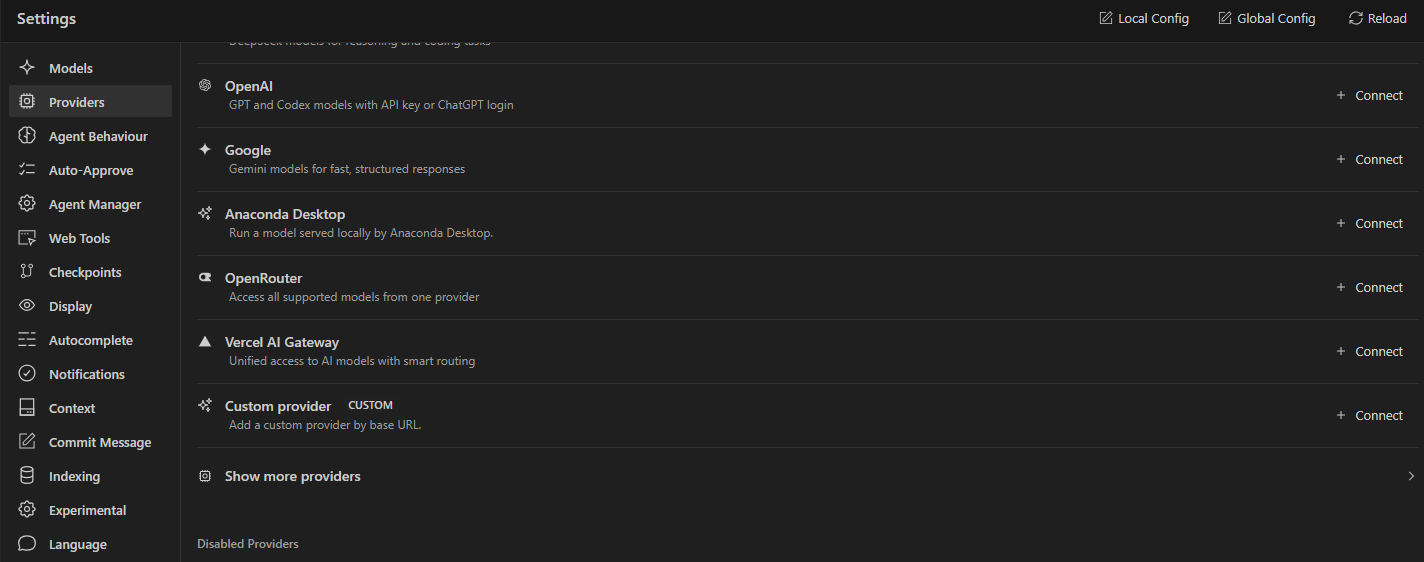
Open **Kilo Code Settings** and select **Providers**.
Next to **Custom provider**, click **Connect**.
 ***
## 3. Configure OverControl
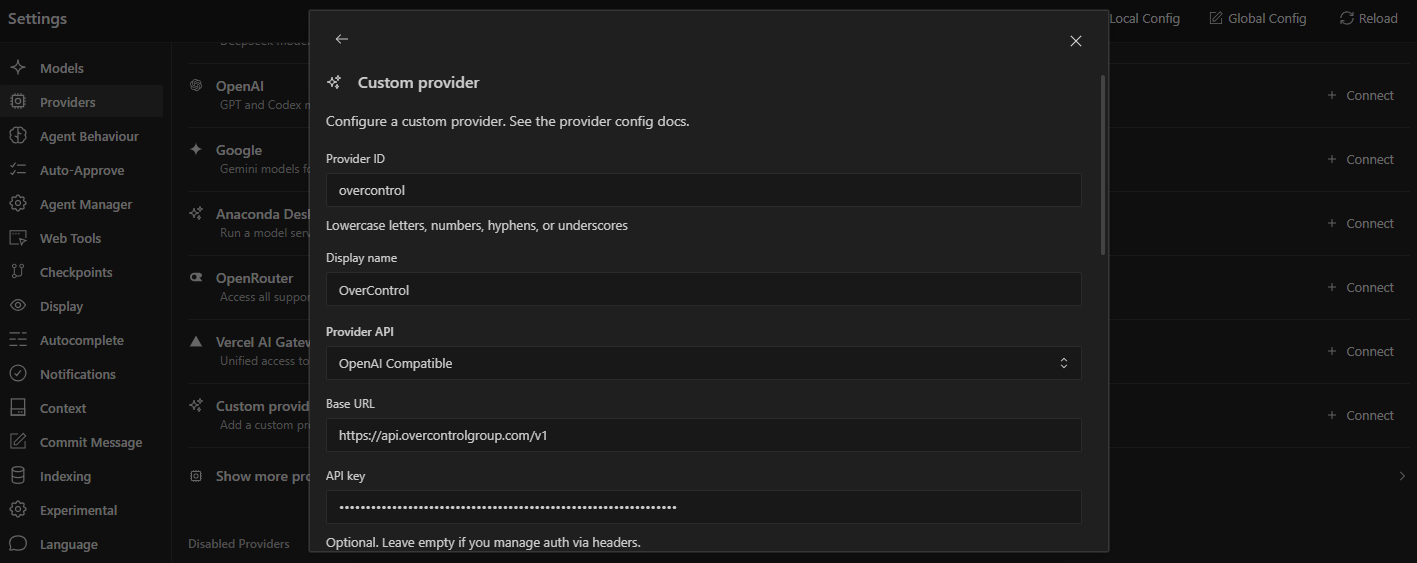
Enter the following values:
| Setting | Value |
| - | - |
| **Provider ID** | `overcontrol` |
| **Display name** | OverControl |
| **Provider API** | OpenAI Compatible |
| **Base URL** | `https://api.overcontrolgroup.com/v1` |
| **API key** | Your OverControl API key |
The provider ID uses lowercase letters, numbers, hyphens, or underscores. For most coding workflows, start with **Lume 3.5**.
```text theme={null}
Base URL: https://api.overcontrolgroup.com/v1
Model ID: lume-3.5
```
***
## 3. Configure OverControl
Enter the following values:
| Setting | Value |
| - | - |
| **Provider ID** | `overcontrol` |
| **Display name** | OverControl |
| **Provider API** | OpenAI Compatible |
| **Base URL** | `https://api.overcontrolgroup.com/v1` |
| **API key** | Your OverControl API key |
The provider ID uses lowercase letters, numbers, hyphens, or underscores. For most coding workflows, start with **Lume 3.5**.
```text theme={null}
Base URL: https://api.overcontrolgroup.com/v1
Model ID: lume-3.5
```
 Keep your API key private. Never expose it in screenshots, logs, public configuration files, or source-control repositories.
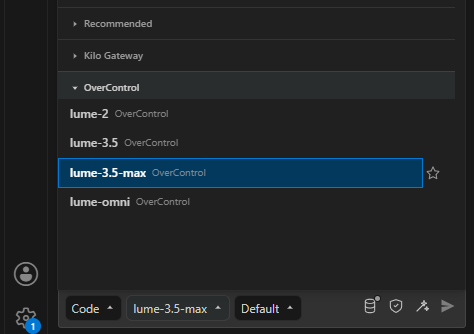
Save the provider. Kilo Code then lists the OverControl models. Choose `lume-3.5`.
Keep your API key private. Never expose it in screenshots, logs, public configuration files, or source-control repositories.
Save the provider. Kilo Code then lists the OverControl models. Choose `lume-3.5`.
 ***
## 4. Verify the connection
Send a simple task from the Kilo Code panel:
```text theme={null}
Explain the structure of this project and identify the main files I should understand first.
```
If Kilo Code returns a response using the selected Lume model, the integration is ready.
***
## Working with Kilo Code
Once connected, Kilo Code can use OverControl while helping you:
* understand unfamiliar code;
* explain files and functions;
* plan implementations;
* debug issues;
* review or refactor code;
* write tests;
* draft technical documentation;
* reason about architecture.
Kilo Code can also inspect files, propose edits, and run commands as part of a task.
Review file changes and terminal commands before approving them, especially when working with sensitive projects or production systems.
***
## Choose a model
For most coding workflows, start with **Lume 3.5**.
Use **Lume 3.5 Max** when the task needs more reasoning, for debugging, architecture, or a longer chain of steps.
```text theme={null}
lume-3.5-max
```
You only need to change the model ID. The Base URL and API key remain the same.
[Compare Lume models](/models)
***
## Troubleshooting
Check that your OverControl API key was copied correctly and has not been revoked.
You can create or manage keys from the [API dashboard](https://app.overcontrolgroup.com/dashboard).
Confirm that **OpenAI Compatible** is selected and that the Base URL is:
```text theme={null}
https://api.overcontrolgroup.com/v1
```
Also check your network connection and API key.
Make sure the model ID is entered exactly as documented.
```text theme={null}
lume-3.5
```
[View available models](/models)
Make sure you are using a Kilo Code version that can add a provider by base URL.
Check your selected model, API key, available quota or balance, and API usage in the OverControl dashboard.
***
## Next steps
Return to the AI coding tools overview.
Choose the Lume model for your coding workflow.
Explore all supported integrations.
This documentation is built and hosted on [Mintlify](https://mintlify.com), a developer documentation platform.
***
## 4. Verify the connection
Send a simple task from the Kilo Code panel:
```text theme={null}
Explain the structure of this project and identify the main files I should understand first.
```
If Kilo Code returns a response using the selected Lume model, the integration is ready.
***
## Working with Kilo Code
Once connected, Kilo Code can use OverControl while helping you:
* understand unfamiliar code;
* explain files and functions;
* plan implementations;
* debug issues;
* review or refactor code;
* write tests;
* draft technical documentation;
* reason about architecture.
Kilo Code can also inspect files, propose edits, and run commands as part of a task.
Review file changes and terminal commands before approving them, especially when working with sensitive projects or production systems.
***
## Choose a model
For most coding workflows, start with **Lume 3.5**.
Use **Lume 3.5 Max** when the task needs more reasoning, for debugging, architecture, or a longer chain of steps.
```text theme={null}
lume-3.5-max
```
You only need to change the model ID. The Base URL and API key remain the same.
[Compare Lume models](/models)
***
## Troubleshooting
Check that your OverControl API key was copied correctly and has not been revoked.
You can create or manage keys from the [API dashboard](https://app.overcontrolgroup.com/dashboard).
Confirm that **OpenAI Compatible** is selected and that the Base URL is:
```text theme={null}
https://api.overcontrolgroup.com/v1
```
Also check your network connection and API key.
Make sure the model ID is entered exactly as documented.
```text theme={null}
lume-3.5
```
[View available models](/models)
Make sure you are using a Kilo Code version that can add a provider by base URL.
Check your selected model, API key, available quota or balance, and API usage in the OverControl dashboard.
***
## Next steps
Return to the AI coding tools overview.
Choose the Lume model for your coding workflow.
Explore all supported integrations.
This documentation is built and hosted on [Mintlify](https://mintlify.com), a developer documentation platform.