

This guide covers the Kilo Code extension in VS Code.
Before you start
You need:- an OverControl account;
- an OverControl API key;
- Kilo Code installed in VS Code;
- a Lume model ID.
Open the API dashboard
Create and manage the API key you will use with Kilo Code.
1. Install Kilo Code
Open the Extensions view in VS Code and search for Kilo Code. Install the extension, then open the Kilo Code panel.2. Add a custom provider
Open Kilo Code Settings and select Providers. Next to Custom provider, click Connect.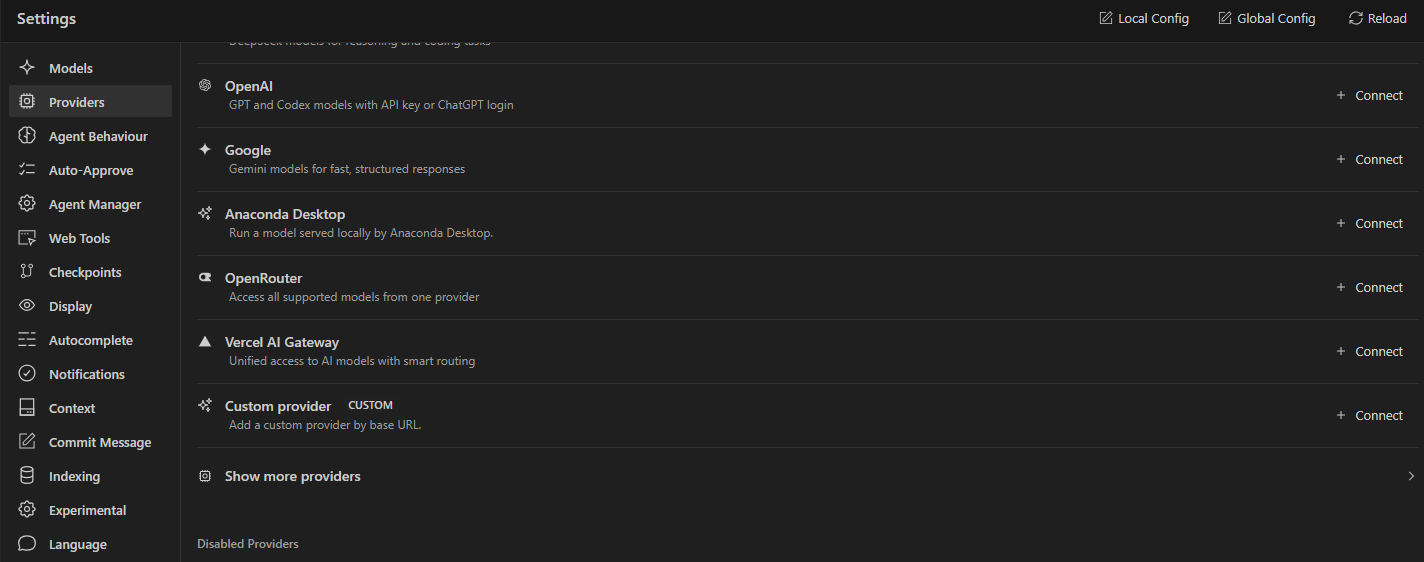
Open Providers and connect a custom provider.
3. Configure OverControl
Enter the following values:
The provider ID uses lowercase letters, numbers, hyphens, or underscores. For most coding workflows, start with Lume 3.5.
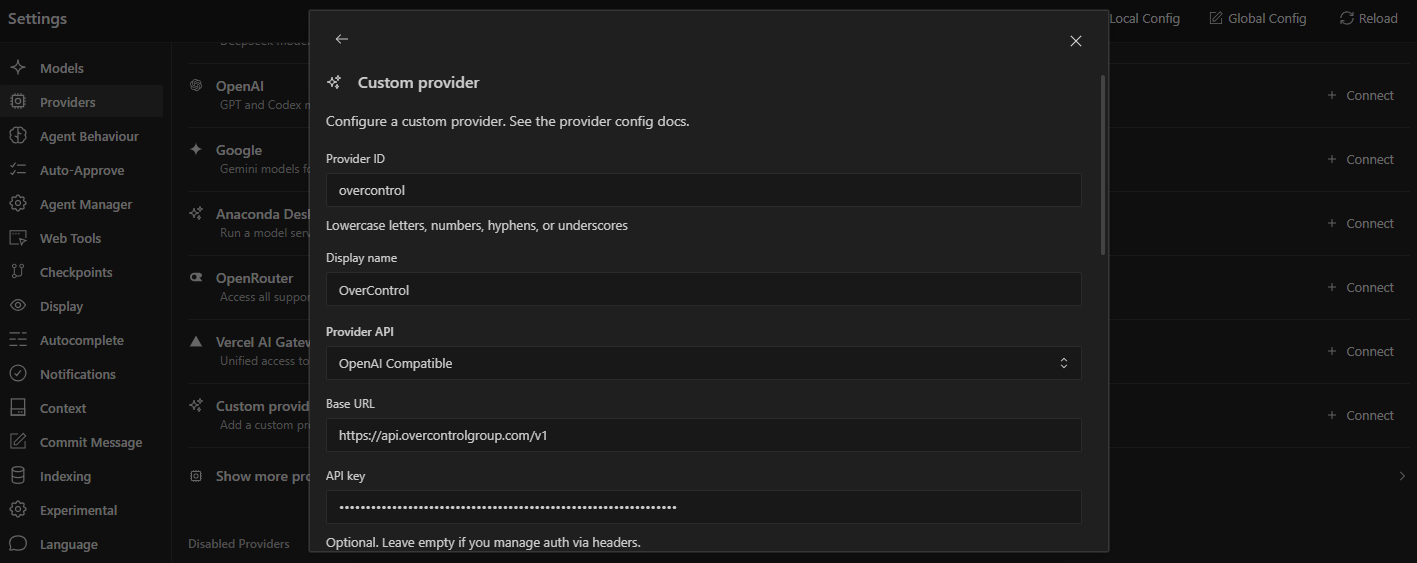
Save OverControl as an OpenAI Compatible provider.
lume-3.5.
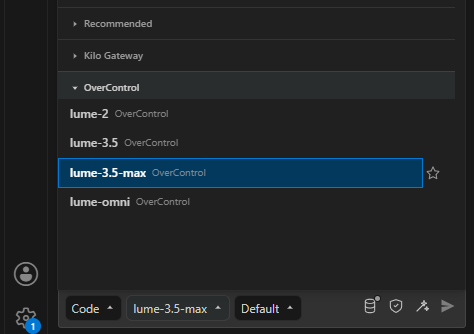
Choose a Lume model after the provider is saved.
4. Verify the connection
Send a simple task from the Kilo Code panel:Working with Kilo Code
Once connected, Kilo Code can use OverControl while helping you:- understand unfamiliar code;
- explain files and functions;
- plan implementations;
- debug issues;
- review or refactor code;
- write tests;
- draft technical documentation;
- reason about architecture.
Choose a model
For most coding workflows, start with Lume 3.5. Use Lume 3.5 Max when the task needs more reasoning, for debugging, architecture, or a longer chain of steps.Troubleshooting
Kilo Code says the API key is invalid
Kilo Code says the API key is invalid
Check that your OverControl API key was copied correctly and has not been revoked.You can create or manage keys from the API dashboard.
Kilo Code cannot connect
Kilo Code cannot connect
Confirm that OpenAI Compatible is selected and that the Base URL is:Also check your network connection and API key.
The model is not found
The model is not found
The custom provider option is missing
The custom provider option is missing
Make sure you are using a Kilo Code version that can add a provider by base URL.
Requests fail after working previously
Requests fail after working previously
Check your selected model, API key, available quota or balance, and API usage in the OverControl dashboard.
Next steps
AI coding tools
Return to the AI coding tools overview.
Models
Choose the Lume model for your coding workflow.
Integrations
Explore all supported integrations.