

OverControl connects to Obsidian through the third-party Copilot community plugin.
Before you start
You need:- an OverControl account;
- an OverControl API key;
- Obsidian installed;
- access to Obsidian Community plugins.
Open the API dashboard
Create and manage the API key you will use with Obsidian.
1. Enable Community plugins
Open Obsidian Settings and select Community plugins. If Obsidian is in Restricted Mode, disable Restricted Mode to allow community plugins.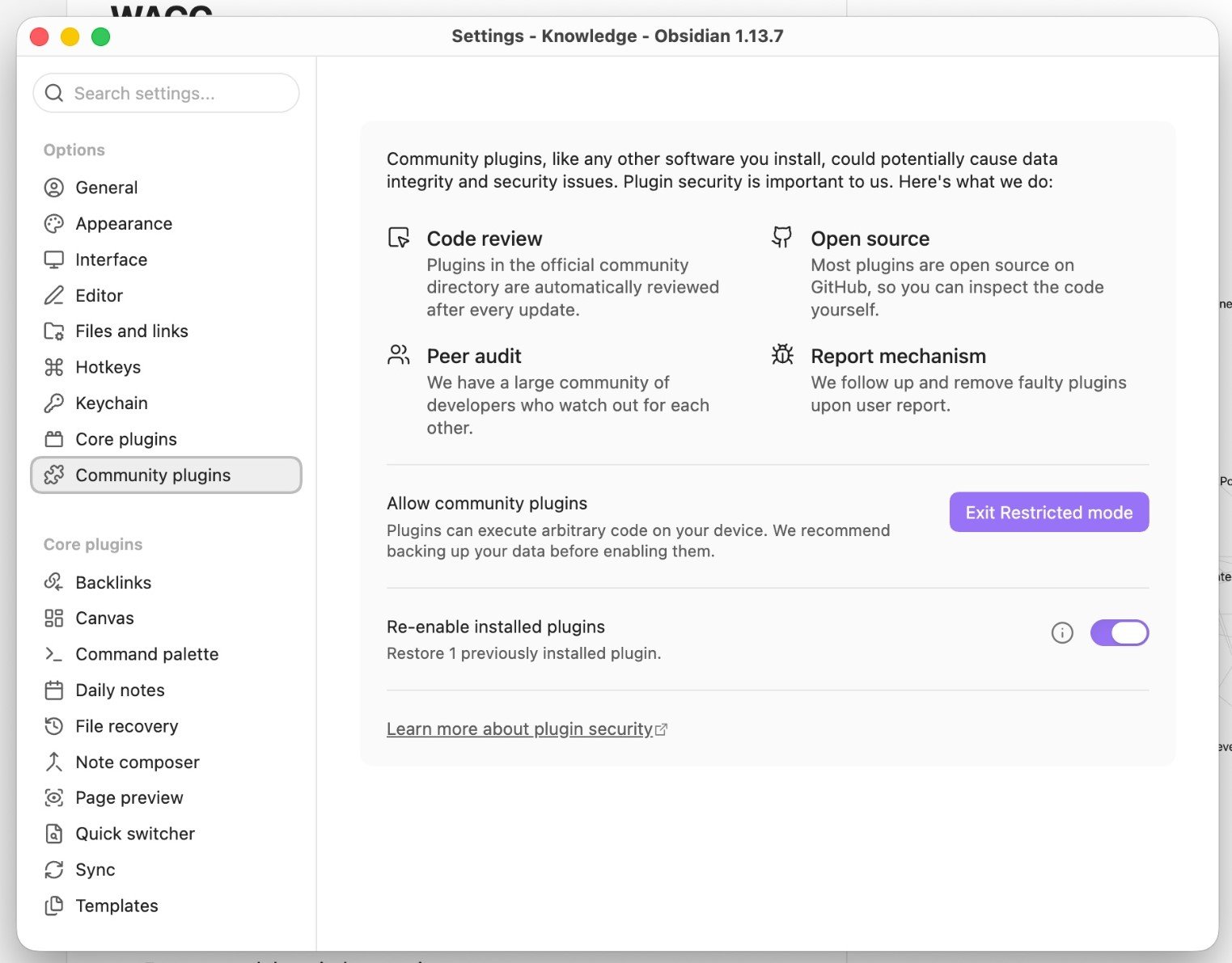
Disable Restricted Mode to enable Obsidian Community plugins.
2. Install Copilot
From Community plugins, open the plugin browser and search for:3. Open Copilot settings
Open: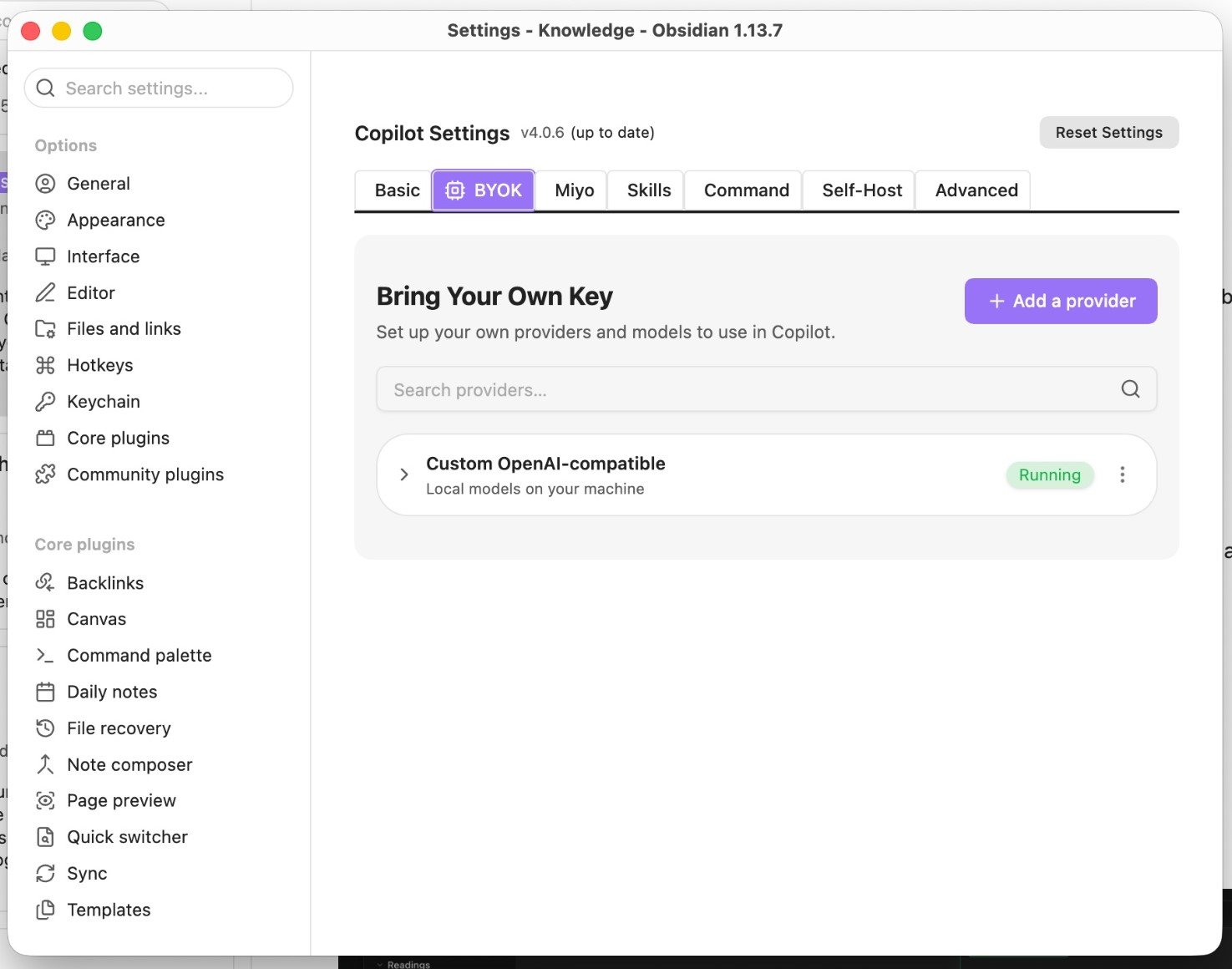
Add a new provider from the Copilot settings.
4. Add OverControl
Select Custom OpenAI Compatible as the provider type. Enter the OverControl connection values:
For most Obsidian workflows, start with:
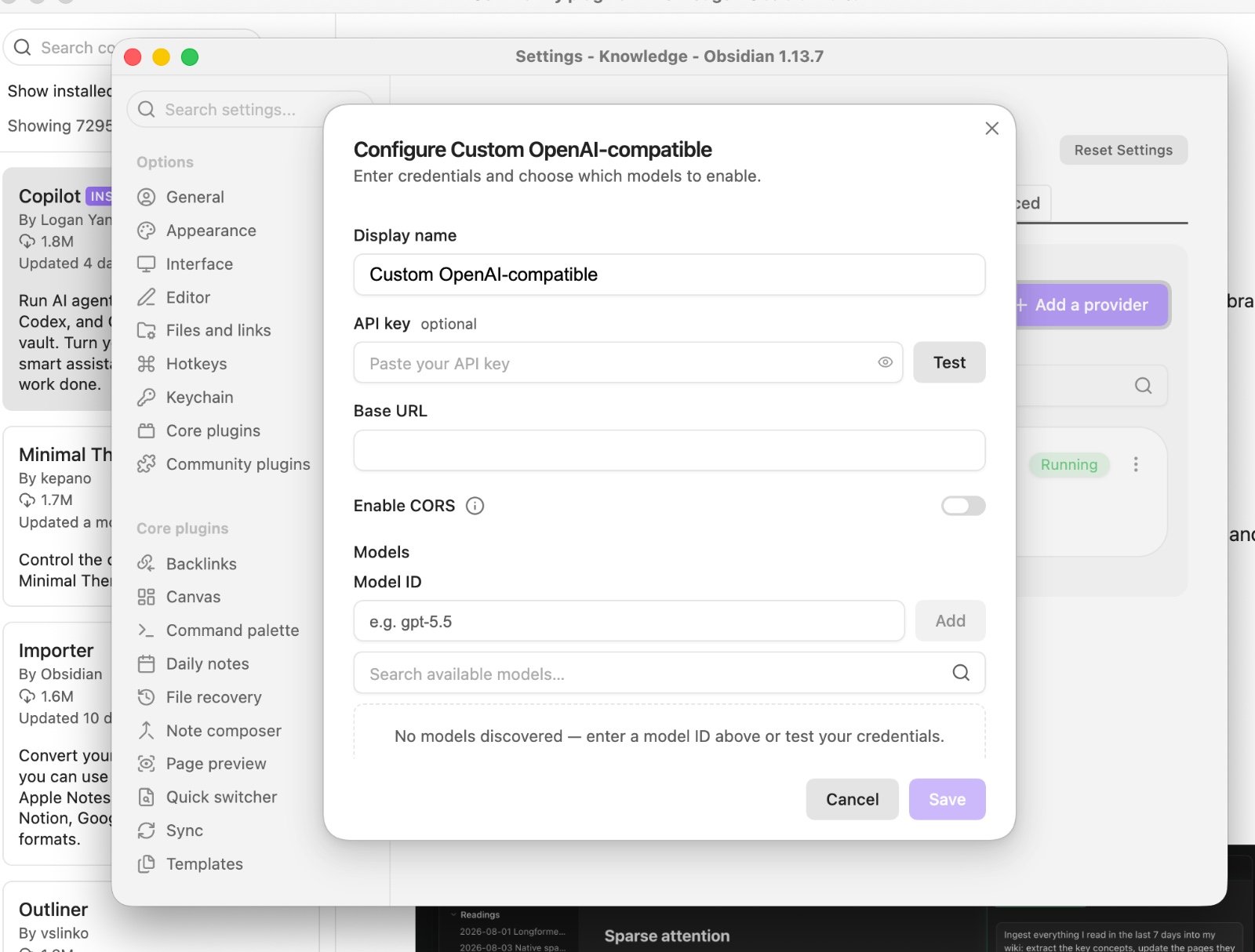
Configure OverControl as a Custom OpenAI Compatible provider.
5. Select the Lume model
After adding the provider, select the Lume model in Copilot as the model you want to use. If you use OverControl regularly, you can also make it your default model. Then open Copilot chat and send a simple message:Working with Obsidian
Once connected, you can use OverControl inside Copilot for tasks such as:- summarizing notes;
- rewriting selected text;
- asking questions about note content;
- extracting key information;
- generating outlines;
- drafting new content;
- organizing research;
- working with context from your vault.
Copilot determines which note content, selected text, conversation history, or other context is included in each API request.
Choose a model
For most writing, summarization, note analysis, and knowledge workflows, start with Lume 3.5. Use another Lume model when your workflow requires greater reasoning capability, lower cost, or multimodal processing. Compare Lume modelsPrivacy and your notes
When you use OverControl through Obsidian, Copilot determines which content is sent to the API. Review the context included in a request before using the integration with sensitive notes or confidential information. For information about how OverControl processes API requests, see Privacy and Security.Troubleshooting
The API key is rejected
The API key is rejected
Check that your OverControl API key was copied correctly and has not been revoked.
Copilot cannot connect
Copilot cannot connect
Confirm that Custom OpenAI Compatible is selected and that the Base URL is:
The model is not found
The model is not found
Make sure the model ID is entered exactly as documented.
The model does not appear in Copilot
The model does not appear in Copilot
Make sure the provider was saved successfully and that the Lume model is enabled or selected in Copilot’s model settings.
Requests fail after working previously
Requests fail after working previously
Check your selected model, API key, available quota or balance, and API usage in the OverControl dashboard.
Next steps
Notes and knowledge
Return to the notes and knowledge integrations overview.
Models
Choose the Lume model for your Obsidian workflow.
Integrations
Explore all supported integrations.